A clipboard list that looks the way you like
See more at a glance with one compact line per item, or read whole paragraphs in a bigger font without opening anything. Set it up with the ⚙ icon in the list header, it applies instantly.
Free: columns, buttons, density, time format. PRO: lines of text, font size.
About customizable list
Everyone uses the clipboard history differently. Some want to see as many items as possible, others want to read each item without opening it. Copy History + lets you shape the list for the way you work, and every change applies instantly.
Start from a preset, Standard or Text only, then adjust: which columns to show (time, favorite, cloud, site, length, size), which buttons each row has, normal or compact rows, and the time as “5 min ago” or as a date and time.
With PRO the list can show 1, 2, 3, 5 or 10 lines of text per item and keep the line breaks, and the font can be small, normal or large. Without PRO these settings are kept and come back when PRO is active again.
Where to set it up
Extension icon⚙ in the list header
Opens the appearance settings right from the list.
SettingsHistory ListAppearance (UI)
Preset, Lines of text per item, Keep line breaks, Font size, Row density, Columns, Time format and Buttons in a row.
SettingsHistory ListAction on row click
Choose what a click on a row does: copy the text, open the source page, or open it as a link or copy it.
How to use it
- 1
Open the list settings
Click the ⚙ icon in the header of the list.
- 2
Start from a preset
Standard or Text only fill in the settings, then adjust them.
- 3
Make it yours
Pick the columns, the buttons in a row, the density, the lines of text and the font size.
Use cases
See the most
One line per item, compact rows and only the columns you need: the whole day's history fits on one screen.
Read without opening (PRO)
Show 3, 5 or 10 lines per item with line breaks, and read emails, notes or code right in the list.
Easier on the eyes (PRO)
A large font for long working days or a high-resolution screen.
A clean side panel
In a narrow side panel keep only the text and one or two buttons, nothing else.
What's inside
- Columns: checkboxes, time, favorite, cloud, site, length, size
- Buttons in a row: open the source page, copy, send, delete
- Normal or compact rows, time ago or date and time
- PRO: 1, 2, 3, 5 or 10 lines of text, keep line breaks
- PRO: small, normal or large font
Questions
Works great with
- Pop-up, side panel & floating windowOpen the clipboard history of the extension the way you work: a quick pop-up, the Chrome side panel next to the page, or a floating window anywhere on the screen (PRO).Learn more
- Clipboard historyA clipboard history extension for Chrome: everything you copy is saved automatically. Search it, mark favorites, add tags, group by date or site and paste it again.Learn more
- Keep formatting & linksThe Copy History + Chrome extension saves copied text with basic formatting and links, so it pastes back exactly as it was. Free for the 5 latest items, PRO for all of them.Learn more
Try it in Copy History +
Install the extension in a few seconds. It's free, no account needed.
More free extensions from PiDevEx
Small tools that make the browser work for you.
ShortcutAI
Fix, rewrite or translate any text right where you type with //commands and your own AI prompts.
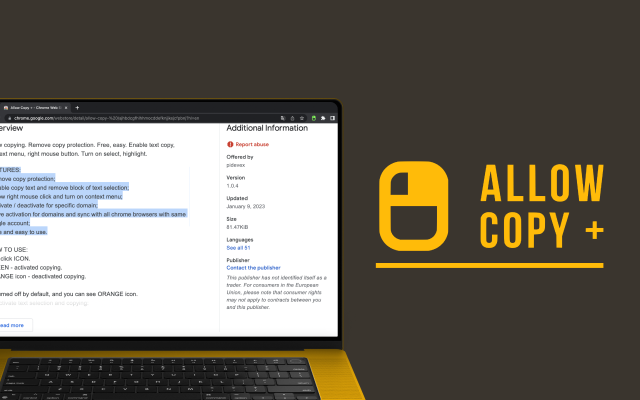
Allow Copy +
Your best helper to copy text from protected websites.
Text From PRO
Text recognizer: get and copy text from images, videos and anywhere in your browser.

Test Bro
AI assistant that helps you with online tests and exams.
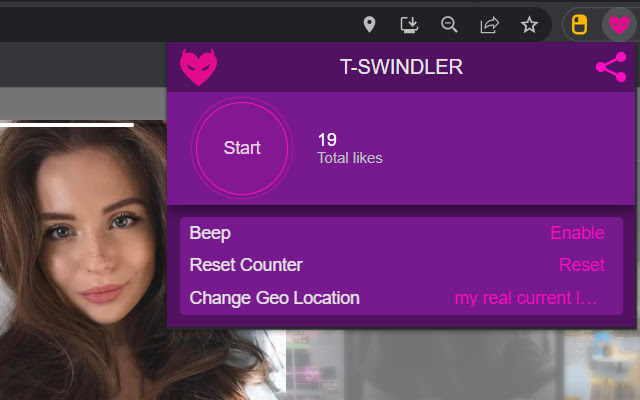
T-Swindler
Extra tools for Tinder in the browser.