
Your clipboard history on your phone and in any browser
Copied something at your desk and need it on your phone? Open this site, sign in, and the history of your Chrome extension is right there: search it, tap an item to copy it, fix a typo. It works in the phone's browser, or in the Copy History + app for iPhone and Android.
PRO feature. It shows what cloud sync keeps in the cloud.
About history on your phone
The extension lives in Chrome on your computer, so its history used to stay there. With cloud sync on, the history is also kept in the cloud, and My history on this site opens it in any browser: Safari on an iPhone, Chrome on Android, a tablet, a laptop that isn't yours.
Why a browser and not one more app? To move a line of text from the computer to the phone, people install a clipboard app on every device, keep a chat with themselves or email themselves. Each app wants an account, permissions, updates and space on the phone, all for one simple job. Here there is nothing to install: open the browser you already have, sign in, and the history is there. It works the same on a work laptop where you can't install anything, on a tablet or on a friend's computer.
Prefer an app? There is one, no app store needed: get the Copy History + app for your iPhone or Android. It opens in one tap, full screen, and updates by itself. On Android you can also share a text into it from any other app.
The items arrive encrypted and are decrypted in the browser of the device you hold, with your own key. Our server keeps only data it can't read. On a computer where the extension is installed the page takes the key from the extension itself. On a phone you paste it once and can keep it on that device; logging out removes it.
It's not a read-only copy. You can copy an item with its links and formatting, edit it, star it, tag it, give it a shortcut, add a new one, merge several into one or export them to TXT, CSV or JSON. Every change goes back to the extension on your computers within about a minute.
The list is made for a small screen: a full-screen mode with nothing but your items, search with [tag], filters for favorites and shortcuts, and grouping by date, site or tag that shows two items per group until you ask for more.
Where to set it up
ExtensionSettingsCloud Sync
Turn sync on. Copy your encryption key there: Your encryption key → Copy.
This siteMy history
Sign in with the same Google account as in the extension and paste the key once. On a computer with the extension it is filled in for you.
PhoneMy historyInstall
Install the app. On an iPhone: Share → Add to Home Screen.
My history⤢ Full screen
Hide everything but the list. On a phone this mode is on from the start.
An app for your phone
PROCopy History + has an app for iPhone, iPad and Android. It opens your clipboard history in one tap from the home screen, full screen, and updates by itself. You get it right here, no need to search the App Store or Google Play: open My history on your phone and tap Install.
- Android: tap Install when the site offers it, or Install the app in the menu. iPhone and iPad: Share → Add to Home Screen.
- Opens in one tap from the home screen, full screen.
- Share into it on Android: select a text in any app, tap Share → Copy History +, check it and save.
- The same account and key as on the site. On an iPhone the home screen app keeps its own sign-in, so you sign in and paste the key there once more.

How to use it
- 1
Turn on cloud sync
In the extension: Settings → Cloud Sync. Keep the encryption key it shows, for example in a password manager.
- 2
Open My history
On the phone or any computer go to clipboardhistory.pidevex.com/history and sign in with the same Google account.
- 3
Paste the key once
Your history opens. Tap any text in the list and it is copied.
Use cases
From the office to the shop
You copied an order number or an address at work. In the shop you open My history on the phone and tap it to copy. No emailing it to yourself.
A computer that isn't yours
A hotel lobby, a library, a friend's laptop. Open the page, copy what you need, log out: the key goes with you.
Fix a template on the way
Found a typo in a reply you keep as a shortcut? Edit it on the phone, and the extension on your computers has the fixed text a minute later.
Collect the day into one note
Select the links and notes you copied today, merge them into one item or export them to a CSV for a spreadsheet.
What's inside
- The browser you already have is enough, or use the app for iPhone and Android
- iPhone, iPad, Android, Mac, Windows, Linux and Chromebook, in Safari, Chrome, Firefox or Edge
- End-to-end encrypted (E2EE): decrypted only in your browser
- Copy with links and formatting, edit with them too
- Edit, merge, star, tag, delete: back in the extension within a minute
- Export to TXT, CSV (Excel, Google Sheets) and JSON
Questions
Works great with
- Encrypted cloud syncPROYour clipboard history on all your computers and browsers, end-to-end encrypted on your device with your own key. No more manual backups. A PRO feature of the Copy History + extension.Learn more
- Send to your phoneA Chrome extension to send any selected text or clipboard item to your phone in one click through Telegram. Links, notes, addresses: right where you need them.Learn more
- Keep formatting & linksThe Copy History + Chrome extension saves copied text with basic formatting and links, so it pastes back exactly as it was. Free for the 5 latest items, PRO for all of them.Learn more
Try it in Copy History +
Install the extension in a few seconds. It's free, no account needed.
More free extensions from PiDevEx
Small tools that make the browser work for you.
ShortcutAI
Fix, rewrite or translate any text right where you type with //commands and your own AI prompts.
Allow Copy +
Your best helper to copy text from protected websites.
Text From PRO
Text recognizer: get and copy text from images, videos and anywhere in your browser.
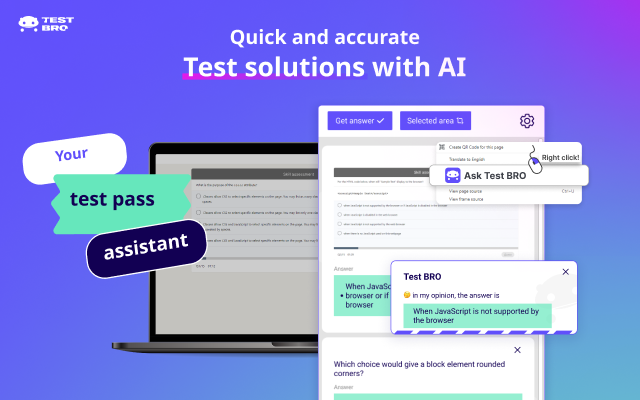
Test Bro
AI assistant that helps you with online tests and exams.
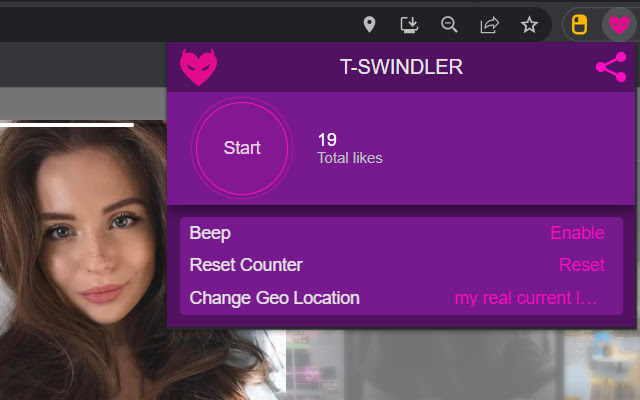
T-Swindler
Extra tools for Tinder in the browser.