Send text from your browser to your phone
Need a link, an address or a note on your phone? Send it from the browser to your Telegram in one click: from the right-click menu or from your clipboard history.
About send to your phone
Getting a text from the computer to the phone usually means emailing it to yourself. With Copy History + it's one click: the text arrives in your Telegram, ready to open, copy or forward on the phone.
Send the selected text on any page right from the right-click menu, without saving it to the history first, or send any item of your clipboard history with its send button.
It's connected once: the Copyhistory bot in Telegram gives you a Chat ID, you paste it in the settings, and that's it.
Where to set it up
SettingsSend To
Open Telegram, find @CopyhistoryBot, get your Chat ID from the bot and fill it in. The steps and a video demo are right there.
SettingsView OptionsContext Menu (Right Click)
Keep Send To Telegram in the Actions for Selected Text or Link.
SettingsHistory ListAppearance (UI)
Add the Send to Telegram button to the Buttons in a row.
How to use it
- 1
Connect Telegram
Open Telegram, find @CopyhistoryBot and get your Chat ID from the bot.
- 2
Select and send
Right-click selected text and choose Send To Telegram.
- 3
Or from the history
Use the send button of any item in your clipboard history.
Use cases
Recipes and lists
Copy a recipe or a shopping list on the computer and read it on the phone in the kitchen or in the shop.
Addresses and phone numbers
Send an address to your phone before you leave, and open it in maps from the chat.
Links for later
Found a long article? Send it to the phone and read it on the way.
Phone numbers to call
Found a phone number on a website? Send it to Telegram and tap it on the phone to call.
Questions
Works great with
- Paste into any fieldA Chrome extension to insert favorite or recent clipboard items into any field from the right-click menu or with keyboard shortcuts. Fill forms and answer messages without switching tabs.Learn more
- Clipboard historyA clipboard history extension for Chrome: everything you copy is saved automatically. Search it, mark favorites, add tags, group by date or site and paste it again.Learn more
- Encrypted cloud syncPROYour clipboard history on all your computers and browsers, encrypted on your device with your own key. No more manual backups. A PRO feature of the Copy History + extension.Learn more
Try it in Copy History +
Install the extension in a few seconds. It's free, no account needed.
More free extensions from PiDevEx
Small tools that make the browser work for you.
ShortcutAI
Fix, rewrite or translate any text right where you type with //commands and your own AI prompts.
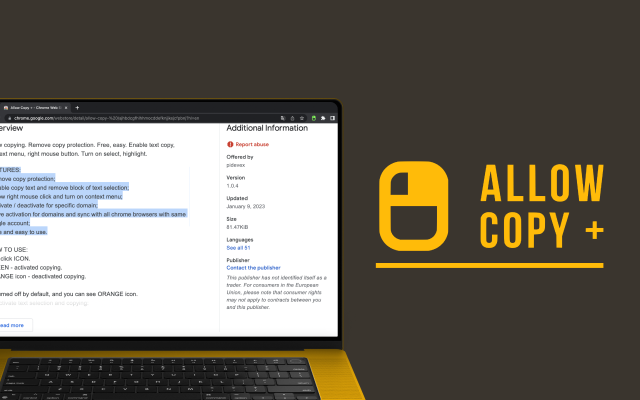
Allow Copy +
Your best helper to copy text from protected websites.
Text From PRO
Text recognizer: get and copy text from images, videos and anywhere in your browser.

Test Bro
AI assistant that helps you with online tests and exams.

T-Swindler
Extra tools for Tinder in the browser.