Back up, import and export your clipboard history
Your history is yours: back it up, restore it, export it to spreadsheets, or bring it from the clipboard manager you used before.
About backup, import & export
Switching from another clipboard manager doesn't mean starting from zero. Import a JSON, CSV or TXT file: a backup of this extension or an export of another manager. If the file isn't recognized automatically, you match its columns to the fields, and the best matches are already selected. Imported items are merged with the ones you have.
Backups keep your history safe: save one any time, and set a reminder so you don't forget. Before a browser cleanup or a reinstall, save a backup and import it afterwards.
Export turns collected items into data: select items in the list and export them to TXT, CSV or JSON. CSV opens in Excel and Google Sheets.
Where to set it up
SettingsImport & BackupImport
Select a file and start the import. For TXT choose how to split it into items, with a preview.
SettingsImport & BackupBackup
Save Backup, see the Last Backup Date and set Remind to Back Up after.
Extension iconselect items ☑Export
Select the items with the checkboxes and export them to TXT, CSV or JSON.
How to use it
- 1
Import
Choose a JSON, CSV or TXT file: a backup of this extension or of another clipboard manager.
- 2
Match the columns
If the file isn't recognized automatically, pick a column for each field. The best matches are already selected.
- 3
Back up and export
Save a backup any time, set a backup reminder, or export selected items to TXT, CSV or JSON.
Use cases
Switching clipboard managers
Export from your old manager, import the file here, and keep working with all your saved texts, favorites and tags.
Spreadsheets
Collected 50 product names and prices? Select them, export to CSV and open the file in Excel or Google Sheets.
Before a cleanup
Save a backup before clearing the browser data or reinstalling Chrome, and import it afterwards.
A text file of notes
Import a TXT file and split it into items by lines, by empty lines or by your own separator.
What's inside
- Import JSON, CSV and TXT
- TXT: split by lines, by empty lines or by your separator, with a preview
- Imported items are merged with the existing ones, nothing is lost
- Export selected items to TXT, CSV or JSON
- Backup reminder after the period you choose
Questions
Works great with
- Encrypted cloud syncPROYour clipboard history on all your computers and browsers, encrypted on your device with your own key. No more manual backups. A PRO feature of the Copy History + extension.Learn more
- Clipboard historyA clipboard history extension for Chrome: everything you copy is saved automatically. Search it, mark favorites, add tags, group by date or site and paste it again.Learn more
- Customizable listChoose the columns, the buttons, compact rows and the time format of your clipboard history extension. With PRO: up to 10 lines of text per item and a bigger font.Learn more
Try it in Copy History +
Install the extension in a few seconds. It's free, no account needed.
More free extensions from PiDevEx
Small tools that make the browser work for you.
ShortcutAI
Fix, rewrite or translate any text right where you type with //commands and your own AI prompts.
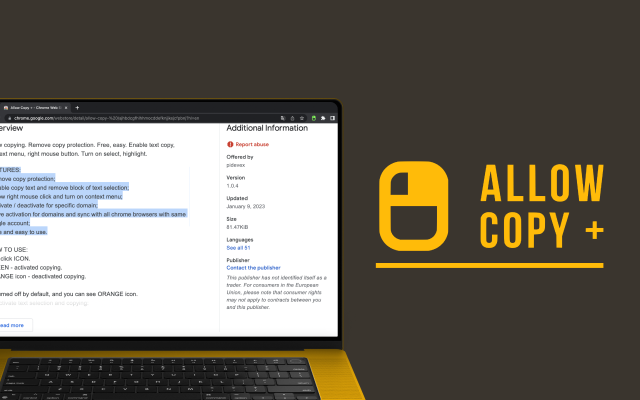
Allow Copy +
Your best helper to copy text from protected websites.
Text From PRO
Text recognizer: get and copy text from images, videos and anywhere in your browser.

Test Bro
AI assistant that helps you with online tests and exams.
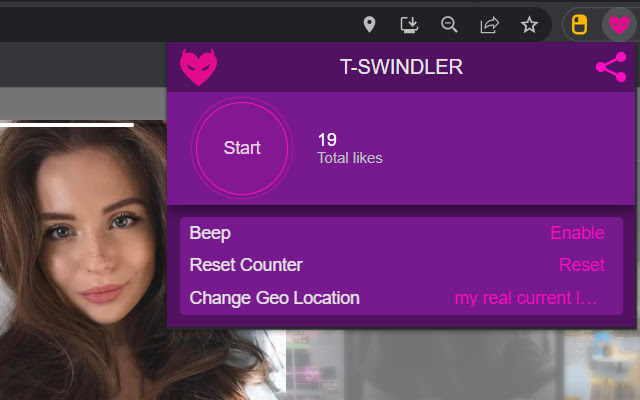
T-Swindler
Extra tools for Tinder in the browser.